How To Get Facebook On Your Desktop

Unknown | 07:06 | Be the first to Comment!
How To Get Facebook On Your Desktop

Seesmic DesktopFacebookerXobniFacebook Sidebar GadgetScrapboy and Facebook AIR application are desktop applications that allows you interact with your stream just as you would on Facebook, but without the browser.


إقرأ المزيد bloggeradsenseo

Hide Your Online Status on Facebook Chat from Select Contacts

Unknown | 07:04 | Be the first to Comment!
Hide Your Online Status on Facebook Chat from Select Contacts

If you are connected with too many people on Facebook and need to hide your online status on Facebook Chat from certain contacts, here’s some help.

Facebook has integrated friends list with Chat and you can also choose which of these list members get to see you online.
go offline chat
So you can stay visible to your family members and close friends while the rest of your Facebook friends won’t know if you are logged into Facebook.
The Facebook chat window has easy sliders so you can easily toggle your online status for any friends list in a click.

إقرأ المزيد bloggeradsenseo

How To Create Quiz On Facebook Easily

Unknown | 07:01 | Be the first to Comment!
How To Create Quiz On Facebook Easily

LOLapps provides quiz creator that can be employed to conjure up these popular personality quizzes that are so widespread in Facebook.


إقرأ المزيد bloggeradsenseo

How To Access Facebook Chat On Desktop

Unknown | 07:00 | Be the first to Comment!
How To Access Facebook Chat On Desktop

Gabtastik and digsby let you keep Facebook chat sessions open on your Windows desktop outside of your regular web browser, using minimal screen real estate and system memory.


إقرأ المزيد bloggeradsenseo

How To Post Your Blog Posts To Your Facebook Wall Automatically

Unknown | 06:59 | Be the first to Comment!
How To Post Your Blog Posts To Your Facebook Wall Automatically

Wordbook allows you to cross-post your blog posts to your Facebook Wall. Your Facebook “Boxes” tab will show your most recent blog posts.


إقرأ المزيد bloggeradsenseo

How To Display Selected Pictures Only On Your Facebook Profile Page

Unknown | 06:57 | Be the first to Comment!
How To Display Selected Pictures Only On Your Facebook Profile Page

A little-known feature in Facebook that lets you decide who shows up in that Friends box. Click that "edit" pencil in your Friends box and type the names of your best friends in the box that says "Always show these friends"


إقرأ المزيد bloggeradsenseo

Create Photo Collage/Grid-View Of Your Facebook Friends

Unknown | 06:56 | Be the first to Comment!
Create Photo Collage/Grid-View Of Your Facebook Friends


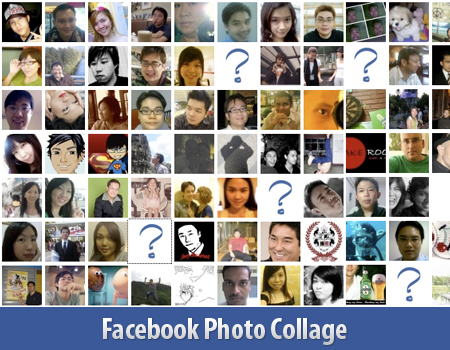
Here’s a small little trick in Facebook that allows you to create a grid view or photo collage out of your friends list. This is how I do it:
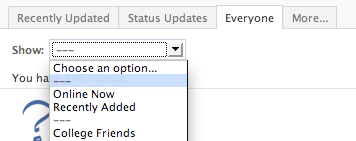
  1. Click on Friends tab.
  2. Proceed to More tab.
  3. From "Choose an option" dropdown, choose any of the dashes "—" 

Photos of all your friends will be displayed, each in 50×50 pixels forming a grid view. Have fun.


إقرأ المزيد bloggeradsenseo

How to “Friend” Someone on Facebook & Hide It From Your Status Updates

Unknown | 06:49 | Be the first to Comment!

How to “Friend” Someone on Facebook & Hide It From Your Status Updates


I’m sure that this has happened to you before. Someone you have ties to, whether it’s a co-worker, your boss, or even worse, a parent, has finally discovered social networking and wants to be your newest Facebook friend.
For me personally, that’s no big deal. I’m fairly open about my online activities. Everything I write, Digg, or otherwise share goes through my FriendFeed to myTwitter then ultimately onto my Facebook (my, that sounds naughty). Besides that, just about everyone I’d consider a co-worker is already on Facebook, and would have little issue about my other Internet activities.
Putting all that aside however, imagine for a moment that I worked at Domino’s Pizza and that I don’t want my boss to know that I just became a fan of Papa John’s (writing this one’s gonna make me hungry). Here’s what I would do to hide Facebook status updates and keep that fact confined to my closer friends:
On your Facebook home page, you should see the ‘Settings’ menu close to the search field on your upper-right. Open that menu and go to ‘Privacy Settings’.


On the next page, you’ll have four choices: Profile, Search, News Feed, and Applications. What you’ll want to edit here are your Profile privacy settings.


By default, everything on your profile is limited to your Friends and your Networks (your first Network is likely your city of residence, but you may have joined more). From the screenshot above, you can see that I’ve limited everything on my profile to my Friends and their Friends. Anyone else who visits my profile will only see that I have a profile, but will not see what’s on it.

In my example, you’re going to want to edit the setting on your Status Updates, since you don’t want your boss to know that you’ve “fanned” the competition. Click that drop down menu and then select ‘Customize’.


You may want to tweak your overall privacy setting here, but what we’re aiming for is the “Except These People” list at the bottom of this dialog. Type out the name of any of your Friends to restrict that person from viewing anything in your Status Updates.

إقرأ المزيد bloggeradsenseo